

Inflyte supports the bulk import of contacts using CSV files.
A CSV file is just a simple spreadsheet saved in a format that can be read by many different systems. However, not all spreadsheet programs create CSVs in exactly the same way. Programs like Excel, Numbers, and others sometimes use slightly different “coding” behind the scenes — which can cause issues when uploading.
Google Sheets handles CSVs in a very clean and consistent way, which is why we recommend it.
In most cases, a CSV exported from Google Sheets will import smoothly into Inflyte without formatting problems.
How to set up your CSV file
Put the email address in column A
Put the name in column B
Save or export the file as CSV (Comma Separated Values)
💡 Tip: If you run into errors importing a CSV made in Excel or Numbers, try opening the file in Google Sheets and re-saving it as a CSV. This usually fixes the issue.
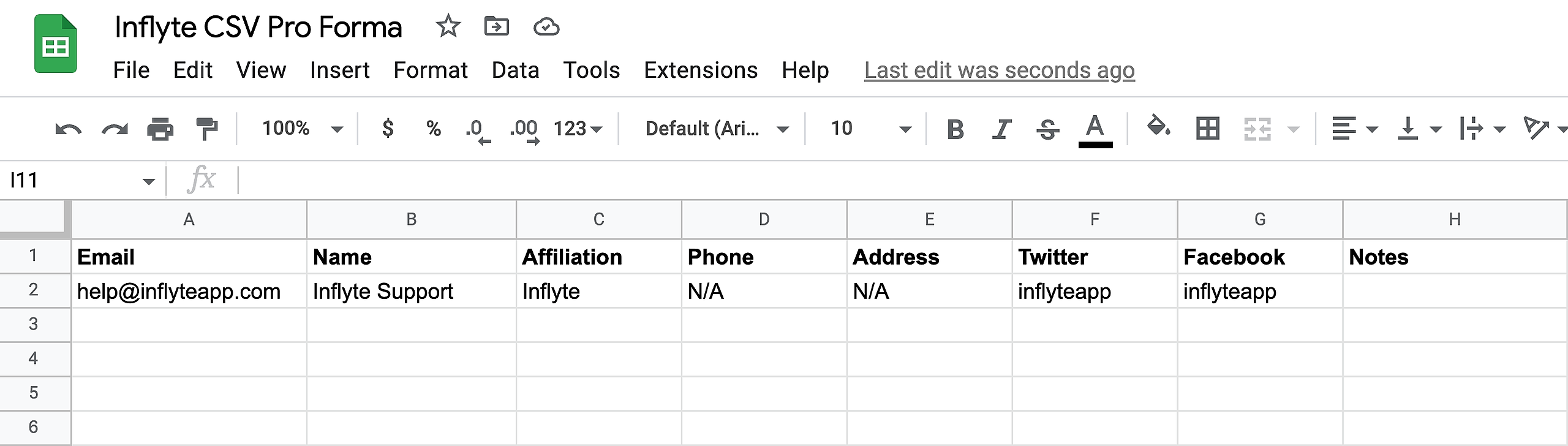
CSV files can be created by exporting in this format from Excel, Number, or Google Spreadsheets.